

Remote work isn’t going away, and neither are the headaches from sluggish VPNs. If your team uses real-time tools like Microsoft Teams or Webex, routing all that traffic through your VPN can cause unnecessary slowdowns. There’s a better way, and it starts when you configure dynamic split tunneling on your Cisco ASA.
Let’s break down what that means and how to do it without getting lost in the weeds.
What Is Dynamic Split Tunneling?
Dynamic split tunneling lets you route only the traffic that needs to go through your VPN and leave everything else to the open internet.
Specifically, with Cisco AnyConnect and ASA, you can exclude traffic to certain domain names (e.g. webex.com or office365.com) from being sent through the VPN tunnel.
Instead of routing all traffic to the headend device (your ASA), the VPN client uses DNS to detect certain domains and lets that traffic flow directly to the web. This improves performance for video, voice, and collaboration apps, and lightens the load on your VPN.
Why It Matters to Denver SMBs
For SMBs in construction, healthcare, or professional services, every second counts. A laggy video call or dropped connection might not seem like a big deal. That is, until it’s happening in front of a client or in the middle of a compliance-sensitive file transfer.
Dynamic split tunneling gives your team faster, more stable access to business-critical apps, while still securing the traffic that needs protection.
How to Configure Dynamic Split Tunneling (Step-by-Step)
Here’s how to set it up on Cisco ASA version 9.12(3)9 or similar. This walkthrough assumes your remote access VPN is already configured.
1. Define the Custom Attribute
Under the global WebVPN context, define the AnyConnect custom attribute:

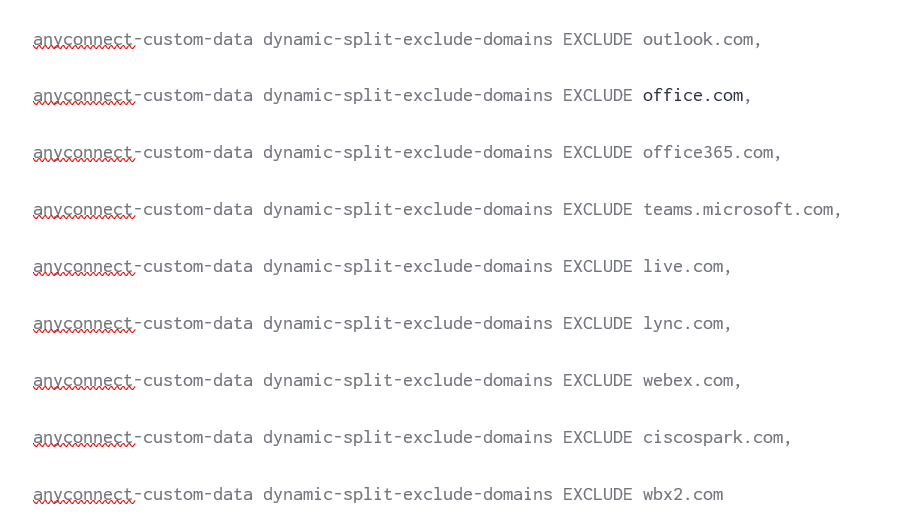
2. Create the Exclusion List
Build a list of DNS domains (separated by commas) that you want to exclude from the tunnel. See below for examples.
Tip: Don’t forget the comma at the end of each domain — they really matter.
3. Apply It to Your Group Policy
Modify the group policy tied to your tunnel group, and reference the exclusion list:

Verifying It's Working
Once your config is in place:
-
Connect to the VPN from a client machine
-
Open the AnyConnect Advanced Window
-
Head to the Statistics tab
-
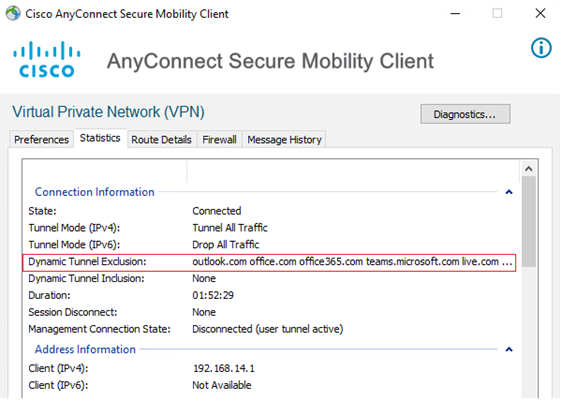
Under Route Details, look for Dynamic Tunnel Exclusions. Your listed domains should show here:
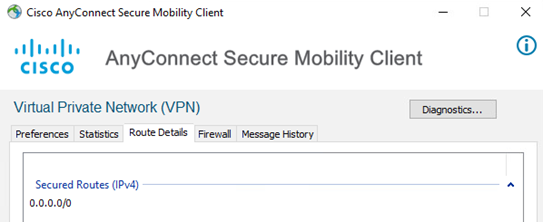
- Next, look for Secured Routes. Likely still showing 0.0.0.0/0:
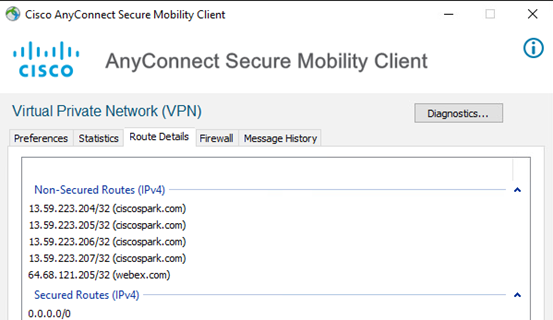
To test it live, visit one of your excluded domains (e.g., webex.com). AnyConnect should automatically detect and route that traffic outside the VPN tunnel, confirming your split config is working.
Can You Modify The Exclusion List Later?
Here’s the catch: editing the exclusion list isn’t as simple as updating a config file.
If you want to add or remove a domain, you’ll need to:
-
Remove the current list reference from the group-policy
-
Delete the exclusion list itself
-
Rebuild and re-apply the updated list
This can be frustrating if your team frequently adds new tools or platforms. We recommend documenting exclusions and implementing a simple change approval process to avoid surprises later.
Final Thoughts: A Simple Win for Remote Teams
You don’t need to overhaul your VPN strategy. And no, you don’t need to accept glitchy video calls as the norm. But you can fine-tune your VPN setup to support today’s hybrid teams. Consider starting with something as straightforward as dynamic split tunneling.
Optimizing your VPN doesn’t have to be a project.
We’ll walk you through it, one clear step at a time.